
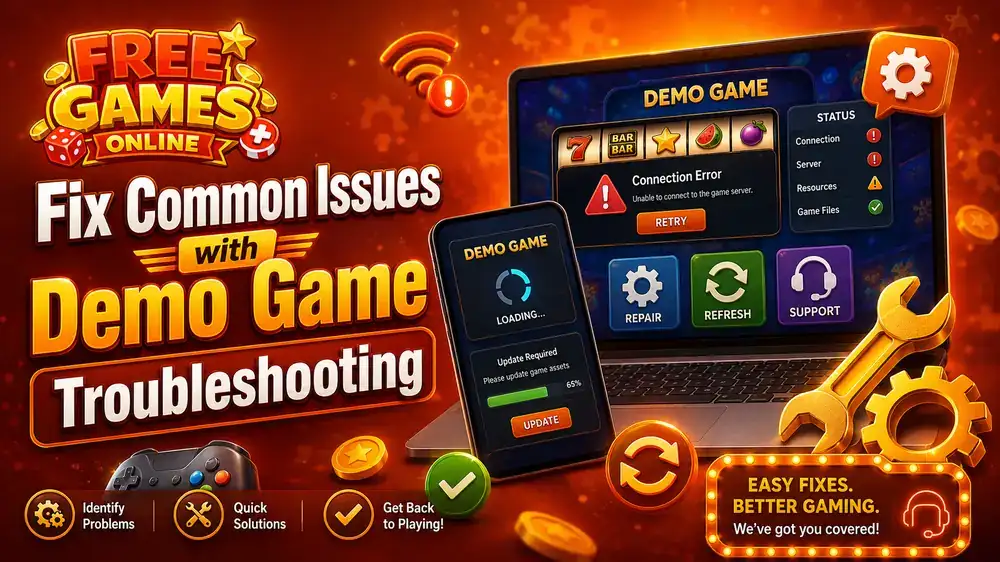
Few things are more frustrating than launching a new trial and hitting a wall. You want to explore a new world, but the screen stays black or the controls fail. This is where demo game troubleshooting becomes essential for any player. Whether you are on a PC or a mobile device, small technical hurdles often stand between you and the fun. Learning how to fix these issues quickly lets you get back to the action.
Solving Browser and Loading Problems
Many modern trials run directly in your web browser. While this is convenient, it introduces several points of failure. A common issue is the dreaded blank screen. This often happens because the browser fails to load the necessary WebAssembly or data files.
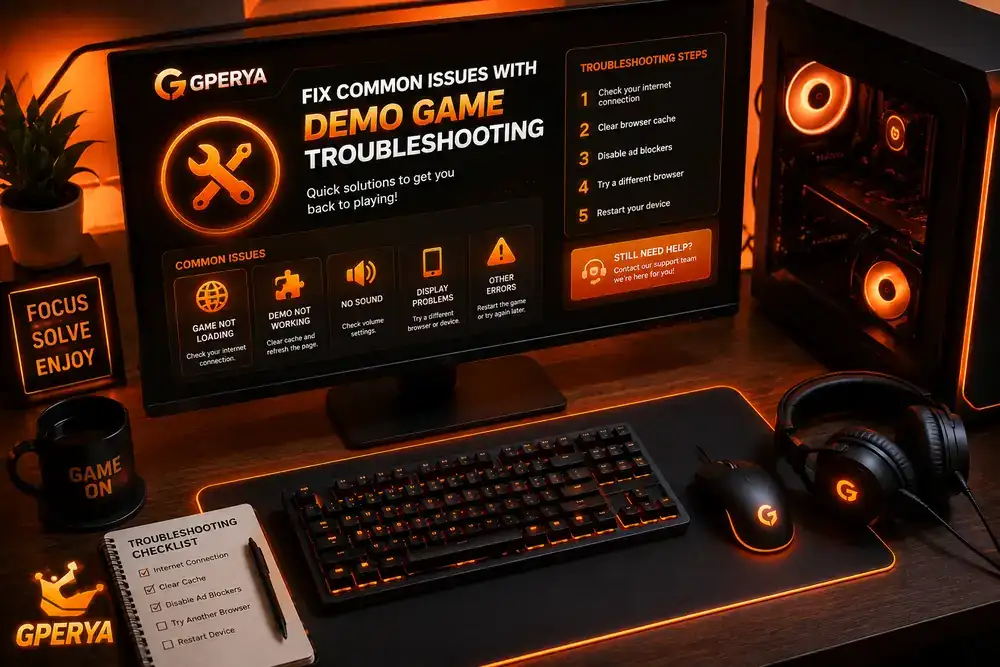
- First, check your internet connection. A brief dip in speed can cause a file to fail. If the game stays stuck on a loading bar, try refreshing the page. Sometimes a simple reload clears the cache and allows the assets to load correctly.
- If a refresh does not work, try clearing your browser cache. Old data from previous sessions can conflict with new game files. This is a key part of free online games troubleshooting. Navigate to your browser settings and clear the hosted app data and cookies.
- Another common culprit is the browser extension. Ad-blockers or script-blockers often mistake game files for intrusive ads. They may block the script that starts the game engine. Try disabling these extensions or adding the site to your allow-list.
- Lastly, ensure your browser is up to date. Game developers use the latest web standards to ensure performance. An outdated browser may not support the modern code used in the demo. Update your software to the latest version to ensure compatibility.
Optimizing Hardware and Software Settings
If the game loads but runs poorly, the problem might be your hardware. Demos are often unoptimized because they are not final products. This means they might demand more from your system than a finished game would.
- Start by checking your system requirements. Even a demo has a minimum set of specs. If your RAM or GPU is too low, you will experience lag. To mitigate this, close all other background applications. Web browsers are notorious for eating memory. Closing twenty open tabs can free up enough space for the game to run smoothly.
- For those on Windows, check your graphics drivers. Outdated drivers can cause visual artifacts or crashes. Visit the manufacturer's website to find the latest update for your hardware. This often fixes flickering textures or sudden crashes during gameplay.
- If you are playing on a laptop, check your power settings. Many laptops throttle performance when running on battery to save energy. Plug your device into a power outlet and switch the power plan to High Performance. This allows your CPU and GPU to run at full speed.
Some players also find that full-screen mode causes issues. If the game crashes when you hit F11, try playing in a windowed mode. This reduces the load on the display driver and can prevent some common stability problems.
Fixing Control and Input Issues
Controls that do not respond are a major hurdle. In browser-based demos, the game window often needs focus before it can read your keyboard. If you click the page but the character does not move, click directly inside the game frame. This tells the browser to send your keystrokes to the game instead of the webpage.
Check for conflicting software. Some overlay programs, like those from recording software or chat apps, can interfere with inputs. Try turning off overlays to see if the controls become responsive.
- If you are using a controller, ensure it is recognized by your OS. Some demos only support XInput controllers. If you use a generic gamepad, you might need a third-party mapper to make it work. Always test your controller in a different app first to confirm it is functioning.
- For mobile users, touch input issues are common. Ensure your screen is clean and that no screen protector is interfering with the sensors. If the virtual joystick drifts, try restarting the app. This usually resets the input calibration and fixes the drift.
If you continue to face technical hurdles, it helps to seek community support. Many developers have dedicated spaces where players share fixes. You can join our telegram group to discuss common fixes with other users. Sharing your specific device specs often helps others find the exact cause of the problem.
Final Steps for Persistent Problems
When basic steps fail, you may need a deeper dive. Check if the issue is local or global. Visit the developer's social media pages to see if other players are reporting the same bug. If everyone is experiencing the same crash, the problem is likely with the demo build itself.
- In such cases, there is nothing you can do but wait for a patch. However, providing the developer with a detailed bug report can speed up the process. Include your OS version, browser type, and the exact moment the crash happens.
- If the problem is unique to your machine, try a different browser entirely. If you use Chrome, try Firefox or Edge. Different browsers handle memory and scripts in different ways. A game that fails in one might work perfectly in another.
- For those who want a more stable experience, look for downloadable versions of the demo. Browser versions are convenient, but standalone files are generally more stable. They do not rely on a web connection to load assets and are not limited by browser memory caps.
If you have tried everything and still cannot get the game to run, it is time to reach out for professional help. You can contact us for further guidance on technical issues. Our team can help you navigate the specific settings needed for your setup.
Smooth Your Gaming Experience
Dealing with technical hitches is a normal part of trying out new software. Most issues stem from simple conflicts between the game and your current settings. By following a structured approach to demo game troubleshooting, you can resolve most errors in minutes. From clearing your cache to updating drivers, these small steps ensure a seamless experience. Remember to keep your software updated and your hardware cool. Now that you have the tools to fix these common problems, you can get back to enjoying the latest titles without the stress of technical failures.